Microbit
Intermediate
60 mins
Teacher/Student led
+230 XP

What you need:
Chromebook/Laptop/PC

Microbit Radio Messages

Follow this guide to learn how to send and receive messages using two Microbits. You'll set up radio groups, code messages like text and numbers, and test them in a simulator before downloading to your devices.
Teacher Class Feed

Load previous activity

    1 - Introduction

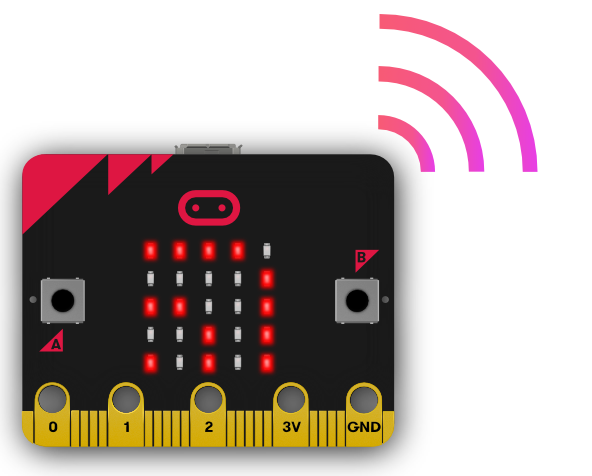
    Microbits have a radio transceiver built into them. A transceiver is an electronic device which is a combination of a radio transmitter and a receiver, hence the name. It can both send and receive radio waves using an antenna, for communication purposes.

    For this project you will need 2 Microbits so you can send and receive messages.


    2 - Create a new project

    Go to the https://makecode.microbit.org website and create a new project.

    3 - Choose a radio group

    The first thing we need to do is set the radio group that our Micorbits will be broadcasting on. A radio group is the channel that the Microbit both sends it's messages and listens for other messages. A Microbit can only send or receive in one group at a time.

    A Microbit that is on radio group 2 will not be able to receive a message from another Microbit that is on radio group 3. However if they are both on radio group 3 then then we can communicate with each other.

    Add the following code to set the radio group to 1.

    radio.setGroup(1)

    4 - Send a message

    We can send different types of messages, we can send:

    1. A string (text) message.
    2. A number message.
    3. A name and value message.

    Let's start off my sending a string message. Add the following code to send the message "Hello" when you press the A button.

    input.onButtonPressed(Button.A, function () {
        radio.sendString("Hello")
    })
    123learn · Online learning platform

    Unlock the full learning experience

    You're previewing this lesson. Get full access to this lesson and hundreds more — each one ready to teach, with interactive activities, printable resources and pupil progress tracking built in.

    Hundreds of curriculum-aligned lessons
    Interactive activities in every lesson
    Printable resources & progress tracking
    Copyright Notice
    This lesson is copyright of 123Learn.org 2017 - 2026. Unauthorised use, copying or distribution is not allowed.
    🍪 Our website uses cookies to make your browsing experience better. By using our website you agree to our use of cookies. Learn more